Drag and Drop Scheduling: WCAG 2.2, Human Checks for AI
Drag and drop scheduling is a visual way to build calendars and timelines by placing, moving and resizing items directly on a grid instead of typing dates into a form. It suits task planning, shift rostering, room and equipment booking, social media calendars and event timelines: anywhere you need to see availability at a glance and rearrange plans quickly.
Key takeaways
- WCAG 2.2 asks for a single-pointer alternative to every drag action, such as a destination menu or editable time fields, unless dragging is essential to the function.
- Choose schedulers that send drags, resizes and menu edits through the same save process, then test autosave, undo and simultaneous edits before launch.
- For AI-generated schedules, deliberately fix conflicts by hand and regenerate, and check that your manual edits survive, since some systems overwrite them.
- For conferences and festivals, test side-by-side tracks and shared room or equipment clashes; general calendar apps rarely connect the schedule to staffing and ticketing.
What drag and drop scheduling actually does
At its core, a drag and drop scheduler works through a small set of gestures. You click an item and move it to a new time slot, grab its edge to stretch or shrink its duration, or select several items at once to shift them together. These gestures feel simple, but the way a tool handles them underneath determines whether the experience is smooth or frustrating.
Well-built tools route every gesture, whether a single drag, a resize or a batch move, through the same update process. This matters more than it sounds. When a drag and a resize trigger different save logic, you get bugs where an edit looks right on screen but never saves, or where two people editing at once overwrite each other. A single path where every change is validated and stored the same way cuts down on those broken saves.
The interaction patterns to look for:
- Drag to move: click and hold an item, then drop it into a new time slot or column.
- Drag an edge to resize: grab the top or bottom border of an item to extend or shorten it.
- Multi-select and batch drag: hold a modifier key or draw a selection box to move several items together.
- Snap-to-grid alignment: items lock to set time increments so edits stay precise.
One thing worth testing early is whether the tool offers a non-drag way to make the same moves. WCAG 2.2 Success Criterion 2.5.7 says any function that uses a dragging movement must also be achievable with a single pointer without dragging, like a tap, a click or a menu choice, unless dragging is essential. A scheduler that only supports dragging locks out some of your team.
Common use cases
The biggest reason people switch from spreadsheets to a visual scheduler isn't the dragging itself. It's what the drag reveals. Colour-coded blocks and load indicators make overbooked days, empty slots and understaffed shifts visible the moment you open the calendar, which a column of text rows rarely shows at a glance.
There's also a speed advantage when you're testing scenarios. Moving a block to see how a schedule reflows is faster than retyping dates in a dozen rows, which makes "what if" planning realistic instead of a chore you avoid. It's one of the reasons organizers are moving away from spreadsheets: a static list records a decision you already made elsewhere instead of letting you experiment.
Common places this shows up:
- Personal time-blocking: turning a flat to-do list into a visual week you can rearrange as priorities shift.
- Shift rostering: assigning staff to time slots and swapping coverage without rebuilding the whole week.
- Equipment or room booking: seeing which resources are free and dragging a reservation into an open slot.
- Social media scheduling: moving posts between days to balance content without losing track of what's published.
- Multi-track event timelines: laying out concurrent sessions, stages or rooms side by side.
Core features to expect
Not every scheduler that advertises "drag and drop" implements it the same way, so it helps to know what a solid build includes before you commit to one.
Interaction basics:
- Drag and resize: moving and stretching items without reopening a form.
- Snap-to-grid: items align to consistent time increments so nothing lands at an awkward offset.
- Multi-select: grabbing several items at once for bulk moves.
- Keyboard or menu controls: a non-drag way to move, assign or resize items, which doubles as the accessibility alternative WCAG 2.2 asks for.
Visibility and safety nets:
- Conflict detection: a warning when a drag creates a double booking or an overlapping shift.
- Capacity indicators: colour bands or fill levels that show when a day, room or person is overloaded.
- Colour-coding: categories, staff or session types distinguished at a glance.
- Undo and edit history: a way to reverse a bad drag without rebuilding the schedule from scratch.
Operational reliability:
- Autosave on edit: every drag, resize or batch move saves immediately rather than waiting on a save button.
- Touch gestures: the same drag and resize actions working on a phone or tablet, not just a desktop.
- Multi-device sync: a change made on one device showing up everywhere else quickly.
Practical workflows by audience
How you use a drag and drop scheduler depends on your role. These short workflows are worth running during a trial, because they show whether a tool holds up under real use.
1. Task planner. Start with a flat to-do list, then drag each item onto a weekly grid to create time blocks. When a meeting runs long or a priority shifts, drag the block to a new slot instead of retyping it, and resize blocks as you learn how long tasks really take.
2. Shift manager. Assign staff to open shifts by dragging names into time slots, then test a swap by dragging one person's shift onto another's row. Lock critical shifts (opening, closing or specialized coverage) so they can't be moved by accident, and confirm the tool notifies staff when a shift changes.
3. Social scheduler. Drag draft posts from a content queue into specific days and times, then preview each post before it goes live. Move posts between slots when a campaign shifts, and check that the calendar respects each platform's scheduling windows.
4. Event organizer. Lay out session tracks side by side, then drag sessions into rooms and time slots while watching for overlaps between speakers or shared resources. Assign staff and equipment to each block, and when a last-minute change hits (a speaker cancels, a room floods), drag the affected sessions to new slots and check that nothing new overlaps.
Across these workflows the pattern repeats: build or import a baseline, then use the drag interface for the fast, iterative corrections that come up constantly in real planning. Competitions are the extreme case, and how automated scheduling saves competition organizers hours covers the automated half of that workflow.
Accessibility: what WCAG 2.2 asks for
Dragging feels natural if you have steady fine motor control and a mouse or trackpad, but it isn't accessible to everyone. Success Criterion 2.5.7 asks that any function operated by dragging can also be done with a single pointer without dragging, unless dragging is essential or the behaviour comes from the browser rather than the site. The W3C explains why:
Some people cannot perform dragging movements in a precise manner. Others use a specialized or adapted input device, such as a trackball, head pointer, eye-gaze system, or speech-controlled mouse emulator, which may make dragging cumbersome and error-prone.
Acceptable alternatives include a "move to" menu where you pick a destination date from a list, start and end time fields you can type into, or a context menu with explicit "assign" or "reschedule" actions. If a scheduler offers only the drag gesture, it fails this criterion and excludes part of your team.
This connects back to reliable saving. When drag, resize and menu moves all go through the same update function, the accessible alternative isn't a bolted-on afterthought; it's another entry point into the same save path, so the schedule stays consistent whichever method someone used.
AI-assisted scheduling and why human edits matter
A growing number of schedulers start from an AI-generated baseline: you describe the constraints (available staff, time windows, required skills, room capacities) and the system proposes a first draft. That saves the hours it takes to build a draft by hand, especially for shift rosters or multi-track events with dozens of moving pieces.
The baseline is rarely the finished product, though. AI-generated schedules tend to stumble on nuanced constraints: a staff member's informal availability change, a sponsor's last-minute room request, or a conflict the system was never told about. Those edge cases are where a responsive drag and drop interface earns its place, letting you fix the baseline in seconds instead of regenerating the whole schedule.
What to check during a trial:
- Generate an AI baseline schedule, then drag five or six items to fix deliberate conflicts.
- Count the clicks or steps each manual fix takes, since a clunky interface slows down exactly the corrections you'll make most often.
- Check whether a manual edit sticks when you regenerate or re-run the AI suggestion, since some tools quietly overwrite manual changes.
How to choose a drag and drop scheduling tool
A focused checklist beats a long feature comparison when you're trying to rule tools in or out during a trial.
- Accessibility: confirm every drag action has a single-pointer, non-drag alternative, per WCAG 2.2 SC 2.5.7.
- Conflict detection: test whether the tool flags double bookings and overlapping shifts.
- Visual capacity cues: check that colour-coding and load indicators update immediately after a drag.
- Integration and sync: look for Outlook, Google Calendar, ICS files, CSV import and export, and an API or webhooks if you need to connect staffing or payroll.
- Mobile and offline: confirm the drag gestures work on a phone, and ask what happens to edits made offline.
- Role-based permissions: check whether you can restrict who can drag, resize or delete items on shared calendars.
- Support response times: ask what to expect if a sync breaks mid-event.
- Cost shape: understand whether pricing is per seat, per event or flat, and how that scales with your team or ticket volume.
Pro tip: before committing, import a sample of your real data (a messy week, not a clean demo file), deliberately create three or four edge cases like double-booked rooms or overlapping shifts, and see whether the tool catches them.
Integrations and sync: calendar, import and export
Many scheduling problems that look like interface bugs are really sync problems, so it's worth understanding the mechanics before you commit.
| Method | What it's good for | What to watch for |
|---|---|---|
| Two-way sync | Edits in the scheduler or your calendar app update both sides | Loops or conflicts when two systems edit the same event at once |
| One-way sync | Simple, predictable publishing out to calendars | Edits made outside the scheduler never flow back in |
| CSV and ICS import and export | Bulk-loading a season of shifts or sessions, and keeping a portable backup | Files go stale the moment the schedule changes |
| APIs and webhooks | Automating updates, like pushing final shifts into payroll or notifying staff of a change | Someone has to build and maintain the integration |
Test sync with a deliberately conflicting edit before you rely on it for a live event.
Implementation tips and pitfalls
Rolling out a new scheduler goes more smoothly when you treat it as a small project rather than a switch you flip.
- Pilot with real data: import an actual messy week or event, not a clean sample, and test edge-case edits.
- Document the non-drag workflow: train staff on the accessible alternative, not just the drag gesture, so no one gets stuck.
- Lock critical items: use locks or approval steps for shifts, sessions or resources that shouldn't move without sign-off.
- Keep backups: export a CSV or ICS snapshot regularly, and check for an audit log before running large bulk edits.
Drag and drop scheduling for multi-track events
Event organizers need more than a single-location shift manager does, because a festival or conference means several tracks, rooms, staff and vendors moving at once. The tools worth shortlisting separate themselves on a few points: how well they lay out tracks side by side, whether they account for shared resources like rooms or AV equipment across sessions, and whether the schedule connects to ticketing and staff assignments instead of living as an isolated calendar.
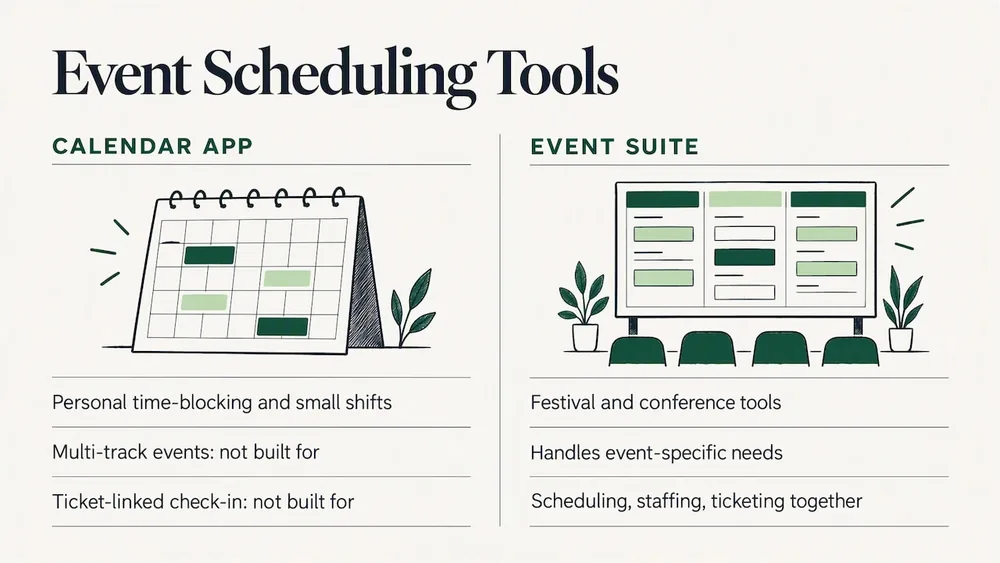
A general-purpose calendar app handles personal time-blocking or small team shifts well, but it usually wasn't built with multi-track events, exhibitor booths or ticket-linked check-in in mind. In Eventist, for example, the event calendar gives each room its own column: you drag sessions into a room and time slot, drag a block's bottom edge to change its length, and drag staff, judges and performers onto the blocks they're working, all in the same system that sells the tickets. For a side-by-side look at festival tools, see the best festival scheduling software comparison, and if you're weighing ticketing at the same time, the ticketing platform comparison looks past the fee structure.
For large conferences, scheduling touches more than sessions. Catering, hospitality and VIP services sit alongside the session grid as their own layer of resource planning, and a good tool should accommodate them without pushing you back into a separate spreadsheet.
When drag and drop is the right call
Building schedules for dance competitions and multi-track events with our customers keeps teaching us the same thing: automated baselines save time, but the final round of fixes (a judge running late, a room that suddenly isn't free) always happens by hand. Drag and drop earns its place there, in quick visual edits and last-minute changes, not as a replacement for planning.
Frequently Asked Questions
What is drag and drop scheduling?
Drag and drop scheduling is a visual way to build and edit calendars by clicking an item and moving, resizing or dropping it into a new time slot instead of typing dates into a form. It's used for task planning, shift rostering, room and equipment booking and event timelines because it shows availability at a glance.
What is the best app to organize a schedule?
It depends on what you're organizing. Personal time-blocking tools suit individual task lists, while shift and event tools suit teams coordinating staff, rooms or multi-track sessions. For events, a platform that keeps scheduling, staffing and ticketing together, such as Eventist, saves you from juggling a separate tool for each.
Is there a free schedule generator?
Many scheduling tools offer a free tier or trial for basic calendar building, though features like conflict detection, multi-track layouts or staff sync are often reserved for paid plans. Check each platform's pricing page directly, since free tiers vary widely in what they include.
What is a good app for shift scheduling?
A good shift scheduling app lets you drag staff into time slots, swap coverage without rebuilding the week, and lock critical shifts so they aren't moved by accident. Look for conflict detection that flags double-booked staff, and a non-drag alternative for accessibility under WCAG 2.2 SC 2.5.7.
Does WCAG 2.2 ban drag and drop?
No. Success Criterion 2.5.7 allows dragging; it asks that the same result can also be reached with a single pointer without dragging, such as a menu, a button or a time field, unless dragging is essential to the function.
Sources
For scheduling specific event types, the complete guide to dance competition scheduling and the complete guide to dance studio class scheduling go deeper.
Tags
Ready to simplify your events?
Join hundreds of organizers, studios, and festival directors who trust Eventist to run their events.